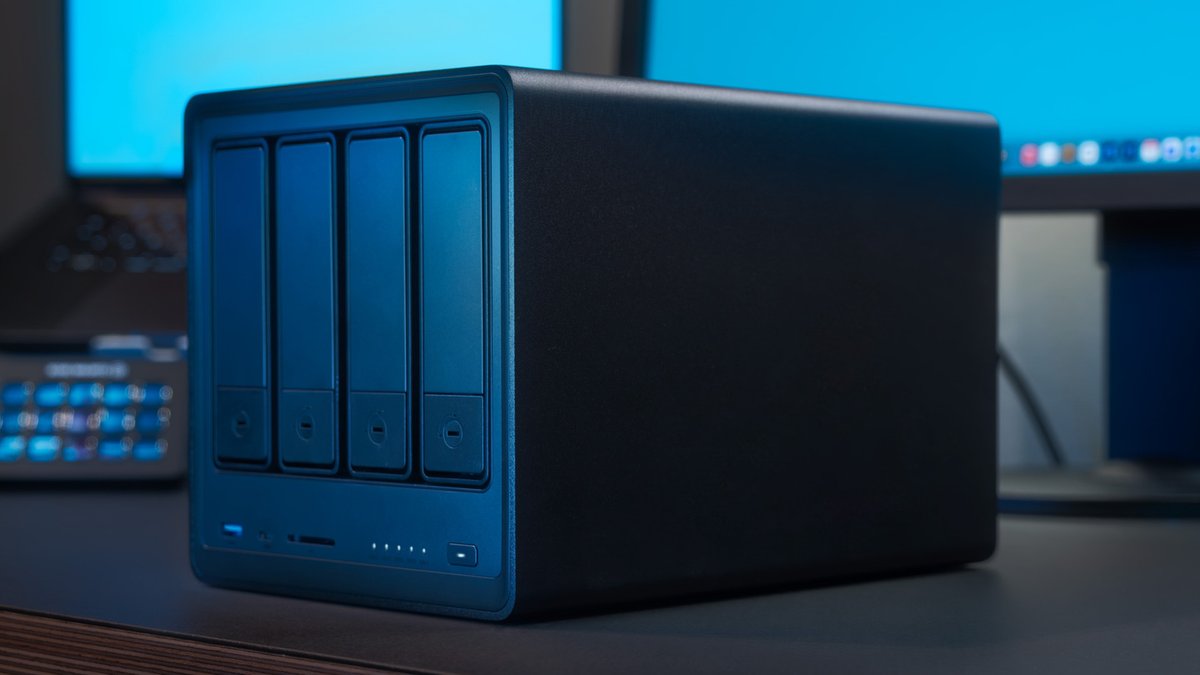
Building a home server can be a cost-effective way to cut down on subscription services for streaming movies, TV shows, and music. By self-hosting, users can scale their server to meet their needs, using anything from a Raspberry Pi to a more powerful alternative, or even an old Mac Mini or PC.
The initial investment in a home server can be offset by the long-term savings on subscription fees. However, prices for components have been impacted by global events, including the demand for AI data centers, making it more expensive to build a server.
For those looking to start their own server, using an old PC or finding a good deal on a new one can be a cost-effective option. Running a Linux distribution, such as Debian or Ubuntu Server, can provide maximum compatibility and flexibility, and it’s free.
Docker is software that hosts other software in “containers,” keeping them separate from the main PC. If they go down or encounter an issue, it will only impact the container and other connected containers.
Setting Up Your Server
Setting up a server for the first time is relatively easy, similar to installing a regular operating system. Debian and Ubuntu Server are popular options, with Debian being a good choice for a minimal OS footprint. Pi OS Lite is also available for Raspberry Pi.
Server operating systems typically don’t come with a graphical user interface (GUI), instead relying on a terminal interface. Users can connect to their server using Secure Shell (SSH) on Linux and macOS, or Command Prompt, Windows Terminal, or PowerShell on Windows.
Read Also: AMD Software Extends GPU Lifespan, Boosts Performance
To connect, users simply need to open a terminal and type “ssh @”. If they share a username with the device, they don’t need to add the username at the beginning. It will ask for the password, and they can log in. Before continuing, it’s best to update the whole server. Each distro uses a different package manager, so users will need to find that first. Typically on Ubuntu and Debian, this is “sudo apt update” to grab new packages, and “sudo apt upgrade” to fully upgrade everything.
Expanding Your Server’s Capabilities
With the server set up, users can start exploring various applications and services. Some popular options include the free media streamer Jellyfin, the comic reader and host Komga, or even setting up a WireGuard VPN for remote access to the home network.
Some of these will run on “bare metal,” straight on the PC, while others leverage Docker. Docker unlocks so much on a server.
To get started with Docker, users need to install it on their server and familiarize themselves with the documentation. On Debian or Ubuntu, they’ll need to update the package list to acquire Docker first, but once done, it’s quick to get some of these applications going.
Using Docker Compose
Docker Compose files are used to configure and manage Docker applications. These files are written in YAML and need to be saved with a .yml extension. Users can activate Compose files by going to the directory they’re stored in and using the “sudo docker-compose up -d” command.
Docker uses its own separate storage space, which can sometimes cause confusion. In Compose files, users need to specify the directory they want the Docker app to use, and Docker will convert that into a particular folder. Some Docker programs will provide a basic Compose file for users to customize, while others may create a full directory of folders called “/path/to/your/directory.” From there, it’s just about filling whatever storage they’ve attached to their cheap server.





Leave a Reply